
Midnight group-project panic rarely starts with bad algorithms—it starts when four teammates push straight to main, pass around final_v3.zip, and freeze the moment CONFLICT (content) prints in red. A simple branch-per-task workflow prevents most collisions and resolves the rest cleanly.
Why Student Teams Break Their Repositories Before Deadlines
In almost every introductory software engineering, capstone, or hackathon course, teams start with good intentions. Everyone clones the repository on Monday, adds a README line, and pushes directly to main. Because early files rarely overlap, direct pushes work for a week—creating the false impression that Git branches are enterprise overhead students do not need.
Everything falls apart 48 hours before submission. Two teammates edit the same controller or stylesheet while a third runs an auto-formatter across forty files. Someone tries git pull, encounters a wall of conflict markers, panics, deletes their local folder, or reaches for git push --force. Within minutes, hours of lab work disappear or an app that compiled an hour ago throws syntax errors right before the live demo.
Most of these failures stem from three predictable structural traps rather than Git being cryptic:
- No task-level isolation: Everyone edits overlapping files on the same shared branch simultaneously, turning normal integration into blind collisions.
- Untracked environment bloat: Folders like
node_modules/,.venv/,__pycache__/, or IDE settings get committed early and create massive non-code merge conflicts on every pull. - Fear of conflict markers: Students mistake
<<<<<<<and=======for repository corruption, when Git is actually pausing to protect both teammates' work until a human decides what to keep.
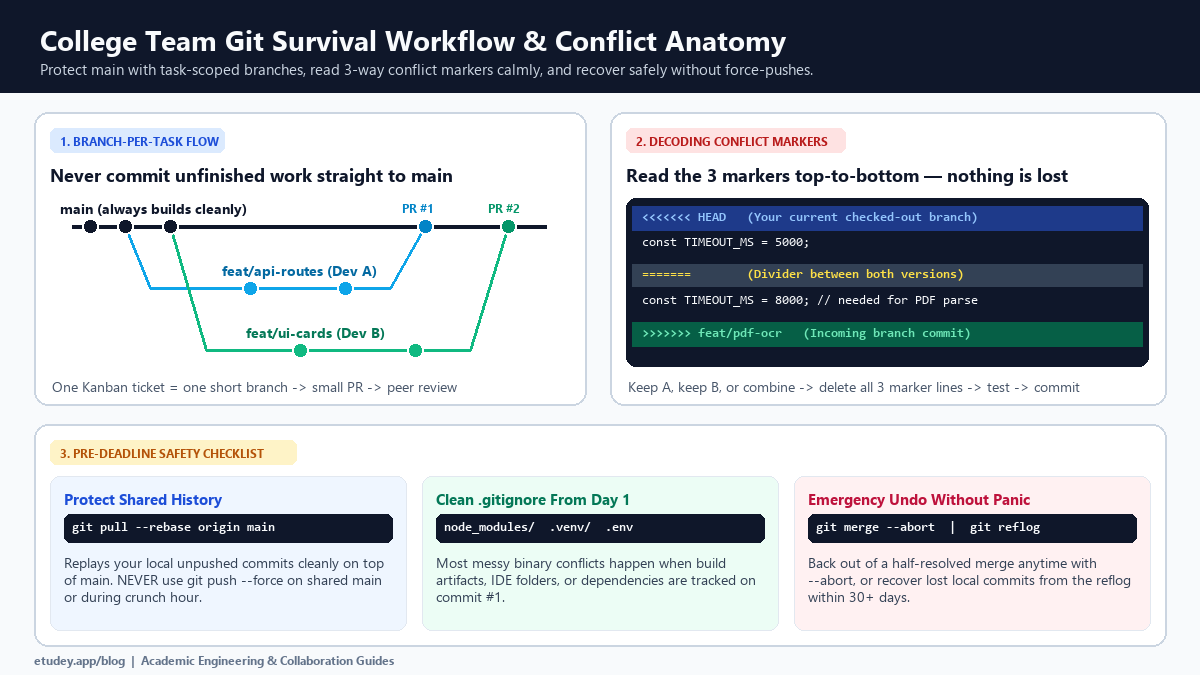
The 3-Rule Branch Workflow for 2-to-5 Person Student Teams
College teams do not need complex multi-month release trains or enterprise branching ceremonies. When you are balancing four other classes and a Sunday night submission, workflow overhead must stay under 60 seconds per task. Follow three non-negotiable rules from commit one.
Rule 1: Protect main as the "Known Working" Baseline
Treat main like an exam answer sheet: nothing enters unless the project compiles, starts cleanly, and passes your core tests. Even on a three-person team, require pull requests on GitHub or GitLab so nobody accidentally pushes broken syntax to teammates five minutes before they pull. When planning your sprint milestones on a Study Kanban Board, map every card directly to one short-lived branch so code ownership stays crystal clear.
Rule 2: One Task, One Branch, Short Lifetime
Before touching a single line of code, create a descriptive branch off an up-to-date main:
git checkout main
git pull origin main
git checkout -b feat/login-validation
Keep branches scoped to a single unit of work—such as feat/csv-exporter, fix/null-cart-crash, or docs/api-setup—and merge them within 24 to 48 hours. Long-lived "my-branch-all-semester" workflows are the primary cause of unmanageable merge conflicts, because two branches that diverge for two weeks accumulate dozens of invisible assumptions about shared functions and schemas.
Rule 3: Commit a Clean .gitignore Before Anyone Writes Code
Before teammates clone the starter repo, the repository owner should generate a stack-appropriate .gitignore covering virtual environments, OS metadata, build directories, and secret files:
# Python & Environments
.venv/
__pycache__/
*.pyc
.env

# Node / Web Builds
node_modules/
dist/
.next/

# Editors & OS Metadata
.vscode/
.idea/
.DS_Store
Thumbs.db
If someone already committed .venv/ or node_modules/ accidentally, remove it from Git tracking without deleting local files using git rm -r --cached node_modules, commit that cleanup alongside the .gitignore update, and tell everyone to pull once before branching again.
Decoding Merge Conflict Markers Without Panic
Even with disciplined branching, legitimate merge conflicts happen whenever two branches modify the exact same lines—or adjacent lines—in the same file. Seeing conflict markers for the first time feels intimidating only if you have never read their structure carefully.
Suppose your branch changed an API timeout to 5000 ms while a teammate's branch on main raised it to 8000 ms for PDF parsing. When you merge main into your branch, Git stops and injects three standardized markers inside the affected file:
<<<<<<< HEAD
const TIMEOUT_MS = 5000;
=======
const TIMEOUT_MS = 8000; // needed for large PDF OCR responses
>>>>>>> origin/main
Read every conflict block strictly top-to-bottom:
- Top section (
<<<<<<< HEADto=======): This is your current branch—what you had checked out when you started the merge. - Middle divider (
=======): Simply separates the two competing versions. - Bottom section (
=======to>>>>>>> origin/main): This is the incoming change from the branch or commit you are merging in.
A Git merge conflict is never a broken repository or lost code—it is Git refusing to guess which teammate's logic should win, pausing safely so both edits stay visible side by side.
The 5-Step Resolution Ritual
Resist the urge to blindly click "Accept Both" or "Accept Current" inside your editor just to make red underlines disappear. Follow this deterministic sequence instead:
- Run
git statusfirst: Identify every file listed underUnmerged paths. Never guess how many files are conflicted. - Check intent with the author if unsure: Ask on chat why the incoming line changed—often the fix requires combining both ideas (for example, keeping the 8000 ms timeout and your new error handler).
- Edit the file and delete all three marker lines: Make sure zero
<<<<<<<,=======, or>>>>>>>strings remain anywhere in the file. - Run your compiler, linter, and tests: Confirm the merged code actually runs before staging; if the conflict broke an import or return type, fix it right there using a structured debugging checklist like systematic binary-search bug isolation.
- Stage and finish the merge: Run
git add <resolved-file>and thengit commit(without changing the auto-generated merge commit message unless adding notes).
git pull vs. git pull --rebase vs. Merge: What Students Should Actually Use
Confusion over git pull defaults causes half of the noisy "Merge branch 'main' of ..." spiderweb histories seen in student repositories. Understanding the practical trade-off between standard merge, rebase, and emergency recovery commands eliminates guesswork during late-night integrations.
| Command / Situation | What It Does to History | When Student Teams Should Use It | Danger Level if Misused |
|---|---|---|---|
git merge origin/main (into feature branch) |
Preserves every commit timestamp and creates one explicit merge commit tying branches together. | Updating your feature branch mid-week when you prefer resolving all conflicts in one single step. | Low — easily reversible with git merge --abort before committing. |
git pull --rebase origin main |
Temporarily lifts your unpushed local commits, fast-forwards main, and replays your commits cleanly on top. |
Syncing small, unpushed local work onto a shared branch without cluttered "merge main into main" commits. | Medium — do NOT rebase commits already pushed and pulled by teammates. |
git merge --abort / git rebase --abort |
Cancels an in-progress conflicted merge or rebase and restores your working tree to pre-merge state. | Anytime you misclicked conflict markers and want a clean reset back to step zero. | None — completely safe escape hatch mid-conflict. |
git reflog + git reset --hard <hash> |
Reads Git's private local journal of every recent HEAD movement (even deleted branches or bad resets). | Emergency recovery when someone thinks they wiped out commits via reset or bad checkout. | Low for inspecting reflog; stash uncommitted files first before hard-resetting. |
git push --force |
Overwrites remote commit history unconditionally with your local copy. | Virtually never on shared college branches; only acceptable on your solo private PR branch with --force-with-lease. |
High — can silently wipe a teammate's pushed work from origin. |
Notice an important subtlety about git pull --rebase: while your code lives solely on your laptop (before you push), rebasing keeps commit history remarkably clean and avoids annoying professor critiques about "50 empty merge commits." Once a branch is shared with another student who pulled from it, stick strictly to regular merges and pull requests.
Splitting Work to Prevent Conflicts Before They Happen
The fastest merge conflict resolution is never writing overlapping edits in the first place. Before kicking off a week-long sprint or 36-hour hackathon, spend ten minutes designing module boundaries and shared contracts inside your team's project workspace—keeping architecture specs and API payload schemas inside shared collaborative project notes or an AI study and project outline workspace so everyone references one source of truth.
- Define interfaces before coding features: Agree on exact JSON payload keys, database column names, and function signatures upfront so the frontend and backend teams mock against identical contracts rather than altering shared helper files hourly.
- Keep configuration and styling modular: Split massive 900-line CSS stylesheets or god-object route files into per-feature modules (
routes/auth.py,routes/export.py) so simultaneous work touches distinct filenames. - Ban drive-by formatting commits during active sprints: If one person runs Prettier or Black across the entire repo while three teammates hold open branches, every single line changes at once. Agree on formatter settings on day one and format only the files you edit—or freeze feature branches for five minutes during one coordinated formatting PR.
- Sync small PRs daily instead of hoarding work until Sunday: Merging a 40-line change every evening takes two minutes; merging a 1,400-line "everything I did all week" branch two hours before submission invites disaster.
When your team prepares slides or a capstone defense around your software architecture, capture concise lessons from clean sprint retrospectives as documented in our engineering technical presentation protocol, and coordinate open-ticket ownership visibly on a student Kanban board or inside the unified Etudey workspace. For details on how our technical guides are reviewed and updated, read our editorial policy.
Emergency Recovery Playbook: When Someone Already Broke Something
Even strong teams slip up at 2:00 AM. Bookmark these three non-destructive rescues so nobody ever re-clones from scratch or abandons hours of lab code:
- "I started merging and ruined the file halfway through": Run
git merge --abort(orgit rebase --abortif rebasing). Git rewinds the entire operation cleanly back to your last good commit. - "I accidentally started coding on
maininstead of a new branch": Do not panic or copy-paste files manually. As long as you haven't pushed yet, rungit checkout -b feat/my-workright where you stand—your uncommitted edits come along onto the new branch cleanly, leavingmainuntouched. If you already committed locally tomain, create the feature branch at that commit (git branch feat/my-work), then rewind localmainback to origin (git reset --hard origin/main). - "I ran reset or deleted a branch and lost commits": Run
git reflogimmediately. Find the SHA hash right before the mistake (labeledcheckout,commit, orpull) and recover it safely into a new branch viagit checkout -b rescue-branch <hash>.
Frequently Asked Questions
Should college teams use git merge or git pull --rebase?
Use git pull --rebase when syncing small local commits that you have not pushed yet, because it avoids noisy automatic merge commits on main. Once commits are pushed to a shared branch that teammates already pulled, switch exclusively to git merge and Pull Requests so nobody's history gets rewritten underneath them.
What do HEAD and ======= mean inside a merge conflict?
<<<<<<< HEAD marks the start of the code currently in your checked-out local branch, ======= divides your version from the incoming change, and >>>>>>> branch-name marks the end of the incoming commit's lines. You resolve the conflict by editing the code into the exact final state you want, deleting all three marker lines, testing the code, and committing.
Why did Git flag a huge conflict in package-lock.json or node_modules?
First, node_modules/, .venv/, and compiled artifacts belong in .gitignore and should never be committed. For dependency lockfiles like package-lock.json that should stay tracked, avoid resolving thousands of hashes by hand: accept either side (git checkout --ours package-lock.json or --theirs), re-run npm install once so the lockfile regenerates cleanly against the merged package.json, and commit the result.
Can I lose my work completely after running git merge?
Almost never, provided your work was committed (or stashed) beforehand. Until you run a garbage-collection prune months later, previous commits stay recorded in git reflog, and an unfinished merge can be canceled instantly with git merge --abort. The only truly dangerous habit is running hard resets or force pushes against uncommitted edits.
How big should a pull request be on a student hackathon or capstone team?
Aim for pull requests that stay under roughly 150 to 300 changed lines and correspond to a single Kanban card or feature slice. Small, daily pull requests take classmates three minutes to review and almost never trigger multi-file merge conflicts right before your demo.